Sign up for PayPal and start accepting credit card payments instantly.
Showing posts with label Computer. Show all posts

Sunday, November 20, 2011

Keyboard Test Capability

The keyboard is one of the devices we use often when using a computer.
Here I give a few ways to test whether your keyboard is really reliable or not.

You simply type the sentence "The quick brown fox jumps over the lazy dog" but the following ways:


  1. Open your notepad.
  2. Press and hold the left shift and right shift.
  3. Type the sentence "The quick brown fox jumps over the lazy dog". (Note the left shift key and do the right shift off).
  4. See if writing out complete accordance with the words above or there are missing letters.
  5. The more letters that do not come out, then the bad quality of your keyboard.


Why should write the sentence "The quick brown fox jumps over the lazy dog"?
Because of these words is a sentence that contains all the letters in the alphabet which is used to test typewriters and computer keyboards, and in other applications involving all the letters in the English alphabet.

Saturday, November 19, 2011

Top 15 Ways to Extend Your Laptop’s Battery Life


Laptops tend to lose their charm quickly when you’re constantly looking for the nearest power outlet to charge up.  How do you keep your battery going for as long as possible?  Here are 15 easy ways to do so.


1. Defrag regularly -  The faster your hard drive does its work – less demand you are going to put on the hard drive and your battery.  Make your hard drive as efficient as possible by defragging it regularly. (but not while it’s on battery of course!) Mac OSX is better built to handle fragmentation so it may not be very applicable for Apple systems.
2. Dim your screen – Most laptops come with the ability to dim your laptop screen.  Some even come with ways to modify CPU and cooling performance.  Cut them down to the lowest level you can tolerate to squeeze out some extra battery juice.
3. Cut down on programs running in the background.  Itunes, Desktop Search, etc.  All these add to the CPU load and cut down battery life.  Shut down everything that isn’t crucial when you’re on battery.
4. Cut down external devices – USB devices (including your mouse) & WiFi drain down your laptop battery.  Remove or shut them down when not in use.  It goes without saying that charging other devices (like your iPod) with your laptop when on battery is a surefire way of quickly wiping out the charge on your laptop battery.
5. Add more RAM - This will allow you to process more with the memory your laptop has, rather than relying on virtual memory.  Virtual memory results in hard drive use, and is much less power efficient. Note that adding more RAM will consume more energy, so this is most applicable if you do need to run memory intensive programs which actually require heavy usage of virtual memory.
6. Run off a hard drive rather than CD/DVD - As power consuming as hard drives are, CD and DVD drives are worse.  Even having one in the drive can be power consuming.  They spin, taking power, even when they?re not actively being used.  Wherever possible, try to run on virtual drives using programs like Alcohol 120% rather than optical ones.
7.  Keep the battery contacts clean:  Clean your battery’s metal contacts every couple of months with a cloth moistened with rubbing alcohol.  This keeps the transfer of power from your battery more efficient.
8. Take care of your battery – Exercise the Battery.  Do not leave a charged battery dormant for long periods of time.  Once charged, you should at least use the battery at least once every two to three weeks. Also, do not let a Li-On battery completely discharge. (Discharing is only for older batteries with memory effects)
9. Hibernate not standby – Although placing a laptop in standby mode saves some power and you can instantly resume where you left off, it doesn’t save anywhere as much power as the hibernate function does.  Hibernating a PC will actually save your PC’s state as it is, and completely shut itself down.
10. Keep operating temperature down - Your laptop operates more efficiently when it’s cooler.  Clean out your air vents with a cloth or keyboard cleaner.


11. Set up and optimize your power options – Go to ‘Power Options’ in your windows control panel and set it up so that power usage is optimized (Select the ‘max battery’ for maximum effect).
12. Don’t multitask – Do one thing at a time when you’re on battery.  Rather than working on a spreadsheet, letting your email client run in the background and listening to your latest set of MP3′s, set your mind to one thing only.  If you don’t you’ll only drain out your batteries before anything gets completed!
13. Go easy on the PC demands – The more you demand from your PC.  Passive activities like email and word processing consume much less power than gaming or playing a DVD.  If you’ve got a single battery charge – pick your priorities wisely.
14. Get yourself a more efficient laptop -  Laptops are getting more and more efficient in nature to the point where some manufacturers are talking about all day long batteries.  Picking up a newer more efficient laptop to replace an aging one is usually a quick fix.
15. Prevent the Memory Effect - If you’re using a very old laptop, you’ll want to prevent the ‘memory effect’ – Keep the battery healthy by fully charging and then fully discharging it at least once every two to three weeks. Exceptions to the rule are Li-Ion batteries (which most laptops have) which do not suffer from the memory effect.

How to Install Windows xp using USB Flash Disk

In a computer with a defective CD drive ,naturally no CD can be read.In that case,the launching of operating system such as Windows XP in that computer becomes a matter of worry. Windows XP can still be installed with the help of USB or any flash disk but this flash disk must be of 1GB capacity. There are certain other prerequisites that are required to be fulfilled to complete the procedure.A original CD of the Windows OS along with a spare PC or a laptop is required.usb_prep8 and bootsect are the two files that must be downloaded.

When your computer has a defect with its CD Drive and you are unable to read any CDs on it, you can choose to install Windows XP from a USB/ Flash disk and this is done quite easily. Below is what you need to do :


  • Step 1: Purchase a flashdisk that has a capacity of more than 1 GB.
  • Step 2: Download usb_prep8 (search in google and download the file)
  • Step 3: Download bootsect (search in google and download the file)
  • Step 4: An original licensed version of Windows XP on a CD as well as a spare computer or laptop.
Now, you will have to follow the procedures below:
1. extract usb_prep8 and bootsect.
2. In usb_prep8 folder. Double click usb_prep8.cmd. A command prompt will open.
3. Press any key to continue. A PeToUSB window will open;
4. Don’t change anything in the PeToUSB window, just click “Start”. Formatting of your USB will then start. It will only take a few seconds.
5. DO NOT close the two windows (PetoUSB and usb_prep8). Now open a new command prompt by typing “cmd” in the Start->Run box. In this NEW command prompt, go to the directory where bootsect.exe is saved. Now type “bootsect.exe /nt52 R:“. Change “R” with the letter drive directory of your USB drive. NOTE: When running the bootsect.exe command you cannot have any windows open displaying the content of your USB stick. If all went well you should see “Bootcode was successfully updated on all targeted volumes.” Now close this command prompt (Still, Do not close usb_prep8).
6. Now close PeToUSB window. You should see the usb_prep8.
7. Now you need to enter the correct information for numbers 1-3.
Press 1 and then enter. A folder browse window will open for you to browse to the location of you XP setup files (aka your cdrom drive with xp cd in it)
Press 2 and enter a letter NOT currently assigned to a drive on your PC, say T
Press 3 and enter the drive letter of your USB stick
Press 4 to start the process.
8. The script will ask you if its ok to format drive T:. This is just a temp drive the program creates to cache the windows installation files. Press Y then enter.
9. Once it’s done formatting, press enter to continue again, you will now see the program copying Windows XP files from your CD to the temp drive it created. This will take around 3-5 minutes. Once this is done press enter to continue again.
10. Next you will see a box pop up asking you to copy the files from temp drive to USB drive. Of course, click “Yes”. This will take around 15 minutes, depending on the speed of your USB. In my case, it took around 30 Minutes.
11. Once the program has completed copy files a popup window asking if you would like to USB drive to be preferred boot drive U: select YES on this window
12. You’re done with this part. Now select yes to unmount the virtual drive.


Procedure 2 (Installing XP into your PC without CD-ROM using USB thumb drive)
1. Insert your USB then start your PC, then go to BIOS set-up. Set USB as your primary boot device. For EEE PC, if it did not boot on the USB after doing this, there is an option in the BIOS where you can change the primary and secondary memory, set USB as the primary. When doing this, I also changed the OS installation from “finished” to “start” just to make sure that the installation will work.
2. On the startup menu you have two options, select option number for text mode setup.
3. From this point on, it is just like any other windows XP installation. When prompt, delete all the partition, including the one with labeled “BIOS” for EEE-PC. Recreate the primary partition on your EEE pc and format it using NTFS.
4. Once the text mode portion of setup is complete, the computer will reboot. This time, boot into the GUI mode.
5. Once the GUI portion of setup is complete you will again have to boot into GUI mode to complete the XP installation until you end up at your XP desktop. It is very important that you DO NOT REMOVE THE USB STICK before this point. Once you can see your start menu it is safe to remove the usb stick and reboot your pc to make sure everything worked.
That is all, I didn’t encounter a problem during my installation of XP for my Asus EEE-PC 4G. Just strictly follow the procedures discussed above.

Thursday, November 10, 2011

Clear on Basic Database Functions and Tables

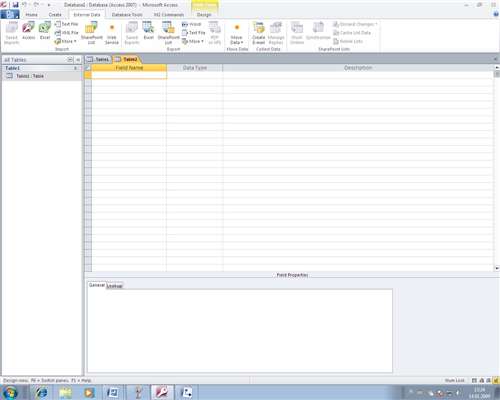
Basic Database Functions and Tables

"Microsoft Access 2010, What's New Screenshots " by IvanWalsh.com
http://www.flickr.com/photos/ivanwalsh/3939161199/
Creative Commons License: http://creativecommons.org/licenses/by/2.0/deed.en

This week I was able to surround myself with databases and basic Microsoft Access functions. I am running a Windows computer and used Microsoft Office Access 2007 to go through the Scavenger Hunt Questions and learn how everything works.

First, I practiced the use of tables in a database. Creating a table is easy, all you need to do is go to the Create Ribbon Bar in Microsoft Access, then Click on table in the top left hand corner. From there you can add new fields to the table by simply clicking on New Field in the Datasheet Ribbon Bar. In design view, you can add a description of the field as well! 


A Primary Key is extremely important when starting a blank database.  This is a value that is unique for each record in the database, and you only have one of these specific keys.  A Primary key can easily be set by right clicking on the field you wish to make a primary key, and clicking "Primary Key". You can also click on this field and select Primary Key on the ribbon bar. 

Also, you can configure a field to only accept a certain value by configuring it's validation, which can be found by going into Design View, clicking on a field, then clicking on the Property Sheet on the ribbon bar. You can enter a validation rule and validation text for when the rule fails. Need to import excel or CSV data into a new table? No problem! Simply go to the External Data Tab, choose the file you'd like to import, navigate to your file, then follow the Import Spreadsheet Wizard!

These concepts are very important in business because implementing Microsoft Access and databases into a company can help them become more organized. Doing this will help keep records for a companies employees, or anything that they'd like to have on reference. It is simple to create a database and very easy to reap the rewards of one by creating queries and forms. Databases are a must for businesses!

A great resource I found while researching databases was found here:
http://www.articlesbase.com/databases-articles/microsoft-access-in-todays-business-693002.html
The author explains exactly why modern day businesses should incorporate databases into their daily routines! It is a great read!

Sunday, October 30, 2011

Antivirus for blackberry iphone and android

To protect consumers in a variety of locations, platforms, devices and digital experiences, presented Symantec Norton Internet Security and Norton Anti Virus 2012. The product is claimed to support mobile devices and tablets, both Android and the IOS platform.

"The last few years, the number of devices, platforms and applications exploded, needs to be protected from cyber crime is also great," said Janice Chaffin, Group President of Symantec's Consumer Business Unit.

Norton AntiVirus and Norton Internet Security 2012, Chaffin claimed, offers the security that goes beyond the traditional Internet security, namely the ability to find your laptop or your Android device is lost or stolen.

"Norton Security 2012 is also equipped with security locks, includes Norton Safe in The Cloud Identy that protects personal and financial information," said Chaffin. "He was also able to maintain the security of false web, can store passwords in the cloud, and can be accessed from any PC that has been installed Norton Security 2012," he said.

Security when a user downloads from the Internet is provided by the Download Insight feature that checks every file to be downloaded. With Sonar, users can monitor the applications that run rapidly to mendetekasi suspicious behavior and disable it.

This product supports Microsoft Windows XP, Vista, and Windows 7 and is available at retailers and online stores Norton.

Antivirus Apps for Android Phones and Tablets

How do you remove a virus from an Android phone or tablet? Well you first need to install and run a very good antivirus program to remove the malware. There are a number of solutions, but as is the case with antivirus applications for PCs and MACs, the best solution is only as good as its virus definition files, and are only effective if those files are updated frequently. Here is a list of the best antivirus software for Android devices.

Antivirus Free AVG
Antivirus Free AVGAVG offers one of the most popular antivirus solution in the industry, both free and paid; now there is a AVG version for the Android platform. This is a real-time scanner that has a backup assistant, task killer, and device wipe features to protect the user’s privacy. You can also run daily or weekly scans on demand, just to be sure the real-time scanner hasn’t missed a threat.
AVG seems to be making a effort to deliver an all-round security solution that not only protects Android phones and Tablets against malware, Spyware and viruses, but theft as well. The app has a stolen phone feature that allows it to locate the device via Google Maps. In instances where the phone is just misplaced, you can locate it by making it ring, even if it is in silent mode.

10 Common Problems in Tablet What You Should Know

Tablet has grown very rapidly up a lot of tablet mode on the market. Starting from the low price tablet with tablet features as they come equipped with these features it offered at high prices.

The need for tablets also continue to increase. If working with a laptop is considered quite difficult when you want to use it as one's back on the sofa, then the choice falls on a tablet. However, if compared to laptop, tablet still has a shortage.

In this article Gopego retell what has been written on the ZDNet site of the problem is in the tablets, and should be quickly repaired by the manufacturer. Regardless of what OS is in the tablets that you have now, or you are intending to buy a tablet, you'll want cermati 10 common problems in the following tablets:


1. Still the lack of integration with the PC
ASUS Transformer is a keyboard dock, but the tablet is available today in general do not have docking stations that allow users to use the tablet more easily with other accessories. Docking stations should be able to connect the tablet with hardware such as keyboard, mouse, speakers or external drive.

2. Better keyboard support
To you who often use the tablet for the virtual keyboard to type in the exact use of the tablet is not adequate. Virtual keyboard is very comfortable to type an SMS message or other small notes but not for you who work as a writer or editor.

 
3. Still a lack of integration with the printer
Printing a document using a printer from a tablet is very frustrating. Generally you have to isntall a third-party app first. For owners of Android tablet, you can use Google Cloud Printing to set up printing can be done fairly quickly. But the way it is not convenient if you have to print lots of documents every day. For that tablets are generally still require development so that it can be used easily for the purposes of printing the document as a PC.


4. Browsers need to optimize
Until now there is no browser is most appropriate to use the tablets. Users generally use more than one browser to support perkerjaannya; Chrome and Firefox because it relies on its speed because it has many features.


5. Built-in handwriting recognition
This feature has been around for years but its presence in the tablets did not materialize. Some tablets have indeed begun to provide updates should the tablet handwriting recognition but should have more capabilities than just the basic functions including handwriting handwriting recognition, input and drawing.


6. Prices are still high
HP TouchPad which has now stopped production release with a high enough price. iPad and Motorola Xoom is two tablets most expensive to date, even more expensive than the price of a standard laptop. If you look at the ability of the laptop is more powerful than tablets, tablets price should be cheaper than laptops.


7. Internal storage is too small
SD cards are not the best solution to overcome the internal storage size of the tablet. Internal storage in a tablet should be added so that the internal storage is greater than in high-end smartphones.


8. Similar phones, not laptops
One problem is the laptop manufacturer, they too hold on samrtphone in designing tablets. In umu OEM only increases the size of the smartphone so that a wider display could be called a tablet. OEMs should not think like that because basically the function of different smartphones and tablets. Tablets can indeed be called a 'big smartphone' but the tablets are not used as often as productive tools smartphones. Currently the tablet is still seen as 'expensive toy' is more appropriate used as social media, watching movies, browsing, and still far from perfect to be able to support the work.

     
9. USB support is still lacking
A number of tablets such as Motorola Xoom Android have USB support, but a minimum of support. In future the tablet should be able to support more than just USB flash drives, such as keyboard, mouse, CD and DVD drives. But of course, additional features that will require many changes and redesign of the hardware also drive installation.

  
10. Access to SD cards
Some features in the form of tablets has provided access to SD cards. But not with the iPad and a host of other Android tablets that release without SD card slots,

  
Well, the tablet is not a laptop but keep in mind that tablets also is not a smartphone, redesigned with a display width regardless of the weaknesses that may be caused. Hopefully a review of 10 tablets above drawbacks useful;)

Friday, October 14, 2011

Password Safe Keeping Tips


1. Not Using Default PasswordThe default password is the password that we can be the first time. Password standards should indeed be quickly replaced because of a very vulnerable. Because the default password can be easily searched on google search, even in situ listed machine name, type and default password is emblazoned with magnificent across multiple vendor sites creators. Sometimes forget the administrator feared by varying the existing default password, so that an intruder can take over the system with default passwords.
2. Not Wearing a Password HintSometimes we are afraid to forget the password that has been our entry into the system / account, so we need to create a reminder if we forget the password. Well, this is called password reminder Hint, if we create a password hint question, then we can quickly recall the forgotten password. Likewise with the hackers, they'll experiment with us to guess the password in the password hint questions, over time the password will be predictable if the questions listed in the password hint can be answered by the penebak password.

Wednesday, October 12, 2011

Got Blurry Photos? Adobe Photoshop’s Newest Tool Could Fix Them

Tired of having to delete blurry pictures taken with your smartphone or camera? Adobe is developing a new feature for Photoshop that could end your problem of blurred photos forever.
The new feature was demoed at the company’s MAX 2011 event (Edudemic was there and was truly amazed), drawing gasps of amazement from a crowd that witnessed a blurred photo, retouched and perfected in seconds. Advanced algorithms calculate the movements of the camera at the time the image was taken, enabling the user to ‘fix’ the image by unblurring it – saving what would ordinarily be a disappointing, dud image.
As the video below demonstrates, Adobe has come up with a new algorithm that can analyze a blurred image and figure out how to correct it. It can handle all types of scenes and even sorts out fuzzy text making it readable again. There’s also a bit of chit-chat with Rainn Wilson, the host of the Adobe Sneak Peak event.

Friday, September 30, 2011

The 32 most popular passwords (no wonder so many of us get hacked)

Most of us routinely use passwords so simple, a monkey could figure them out. In fact, “monkey” is one of our favourites.
Amichai Shulman is the chief technology officer at Imperva, which makes software for thwarting hackers. Recently, he undertook a study of 32 million passwords stolen by an unknown hacker from Rockyou!, an online service that makes widgets for social networking sites like Facebook.
The list is depressing testimony to our collective lack of creativity in the arena of personal security.
“I guess it’s just a flaw in human genetics,” Shulman told the New York Times.
Bottom line, if your password is your first name and your secret first name isn’t NEhBuT3W4l.6, better think about making a switch.
Here they are, listed 1 through 32, in order of popularity:
1. 123456
2. 12345
3. 123456789
4. password
5. iloveyou
6. princess
7. rockyou
8. 1234567
9. 12345678
10. abc123
11. nicole
12. daniel
13. babygirl
14. monkey
15. jessica
16. lovely
17. michael
18. ashley
19. 654321
20. qwerty
21. iloveu
22. michelle
23. 111111
24. 0
25. tigger
26. password1
27. sunshine
28. chocolate
29. anthony
30. angel
31. FRIENDS (yes, all caps)
32. soccer

Wednesday, September 28, 2011

5 Simple Things You Can Do On Your Desktop


When my friends visit my home, they’re quite impressed seeing how I do things on my desktop, and the way it looks. They’re just blown away looking at the customizations I’ve done on my Windows desktop. Here’s are a few ways to mpress your not so geeky friends and have fun for yourself:
  • Rename the Start Button

Yep, rename the Start Button using this little trick. It’s perfect for a little show-off. Most of your friends will be quite surprised that you could actually do it. ;)
  • Use a keyboard launcher

I’m a keyboard junkie and I use Launchy on Windows and Gnome Do on Ubuntu to start programs. The instant appearance of the Launchy window never fails to amuse them. They don’t really know that you could actually launch programs without using the mouse.
  • Use Linux

We learn Linux at school – but mostly we deal with theories, and nobody has experienced Linux yet at school. Boot into Linux, deal with the commands. Turn on Compiz Fusion. They’ll probably ask you if it’s Vista and say “Linux has GUI? I thought it only works with commands”. Watch their jaws drop in astonishment.
  • Docks

There was a time when I used to try a lot of interface makeovers for Windows, and tried a lot of Mac OS resembling enhancements like Docks for Windows. Everybody was quite overwhelmed by the look. You can try the FlyakiteOSX transformation pack as well.
  • Customized Firefox

Well, about this one, I will have to say that the default Firefox Web Browser doesn’t impress friends much (since the default Firefox interface is not-so alien). However, with something like PicLens and TabEffect, you could really make for a good show off.